Build 260926-01
About this Build
This build brings time rounding per case, sending invoices by email directly from the invoice window, sticky notes as columns in lists, and the Justitia connection according to the updated specifications of the Justitia 4.0 project. Below you will find the most important new features since build 260903-07.
User Interface
To keep the software modern and intuitive, we made various changes to the user interface.
Sticky Notes
The previous "Post-its" are now called sticky notes. The window is tidier and shows what to enter in empty fields. A new checkbox allows you to automatically open the sticky note with the record (previous behavior). To prevent the sticky note from being annoying by always bringing itself to the front, you can also deselect the checkbox.
You can also tell if a sticky note is present because the field with the record number (bottom left in the window) is displayed in yellow.
"Prepared Invoices"
The list Unprinted Invoices is now called Prepared Invoices. Most firms send their invoices by email today – "unprinted" no longer fit.
"File"
An archive implies something is no longer needed. Many users were bothered that we labeled the tabs in the DMS as Drafts and Archive. In a survey, the term File prevailed. Therefore, the tabs in the case folder and dossier are now called Drafts and File, and we no longer archive documents but file them.
Change of Colors and Icons
Based on customer feedback, we changed the color of checkmarks in timesheet, dossier, and other forms from red to the accent color of the selected color scheme. Some users found red too intense or unnecessarily alarming; using the accent color now harmonizes better with the display.
Partially invoiced services were previously displayed in the dossier with a green checkmark. Since they could no longer be distinguished from normal checkmarks when using the green color scheme, these checkmarks now have a "+" above them.
Fax and SMS
Sending templates via fax and SMS is outdated and no longer supported.
Time Tracking
Time Rounding per Case
Previously, the rule for time rounding (in time tracking in timesheet and dossier) applied to all cases of the same data space. timeSensor LEGAL 365 is now more flexible and allows you to set the time rounding per case individually. You find the new setting in the case settings window in the Invoicing tab under time rounding. Options are 1, 5, 6, 10, 12, and 15 minutes:
If a time rounding is set for a case, every recorded time is automatically rounded up to the next step – when stopping the stopwatch, entering, and inserting in the timesheet and dossier, as well as when merging service lines. The stopwatch then no longer offers a rounding selection but shows the worked and transferred time.
Two examples with 6 minutes:
37 minutes worked → 42 minutes, i.e., 0.70 hr.
0.25 hr. entered → 0.30 hr.
Without rounding on the case, everything remains as before. The rule also applies in the web timesheet. Cases used as counters for flexitime or holidays are never rounded.
To keep an overview at all times, the new field can also be displayed in the case list. The displayed number corresponds to the set rounding, and a 0 means no special time rounding is stored for the case.
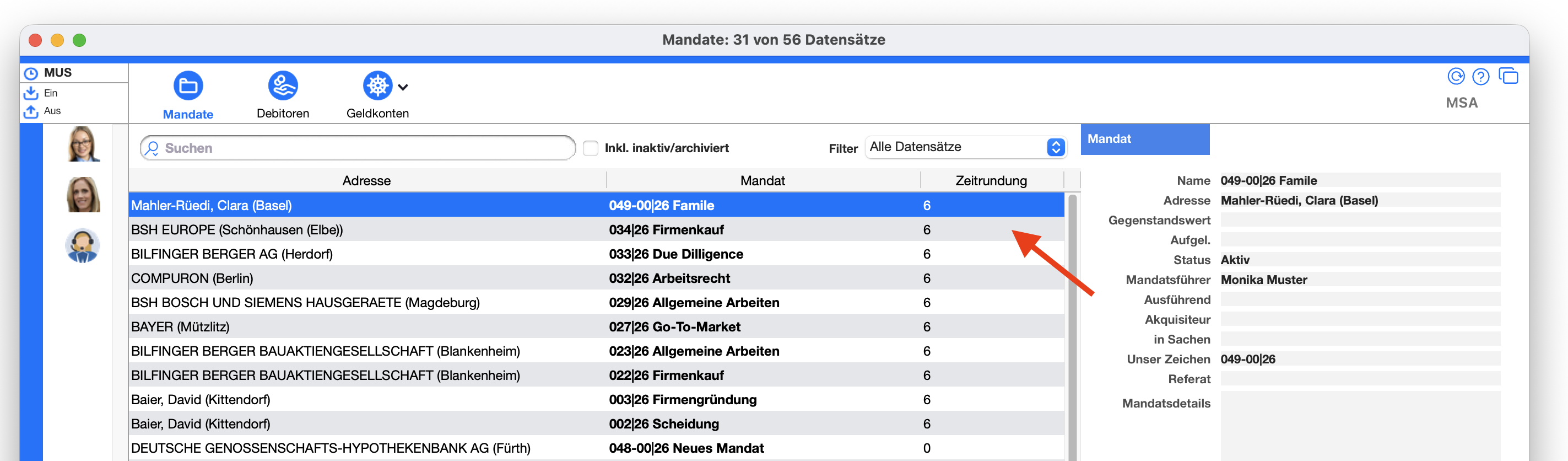

Many firms work with a 6-minute interval because time units of 6 minutes can easily be converted into decimals, preventing rounding differences on invoices.
Working Time and Flexitime
The overview of your time and holiday balance and the Time Sheet report now uniformly calculate gross: The holiday credit counts towards the target time, and taken holidays count as worked time. Those taking holidays no longer lose flexitime – the balance remains the same. The window now calculates the same as the Community report template 113.x
Finances
Send Invoice Directly by E-mail
The Print button in the invoice window can do more. A simple click prints the invoice as before. A right-click or a long click opens a menu with the invoice recipient's email addresses. Choosing one sends the invoice directly by email to that address instead of to the printer. If an email recipient is stored in the invoice's sticky note, it is also available for selection, including the copy recipient.
E-mail Invoice Recipients in the Sticky Note of Cases
In the sticky note of a case, under e-mail invoice recipients, you enter the address to which the invoice should be sent by email, and optionally a copy recipient. The envelope buttons at the end of both fields take over the first or second email address of the recipient with one click.
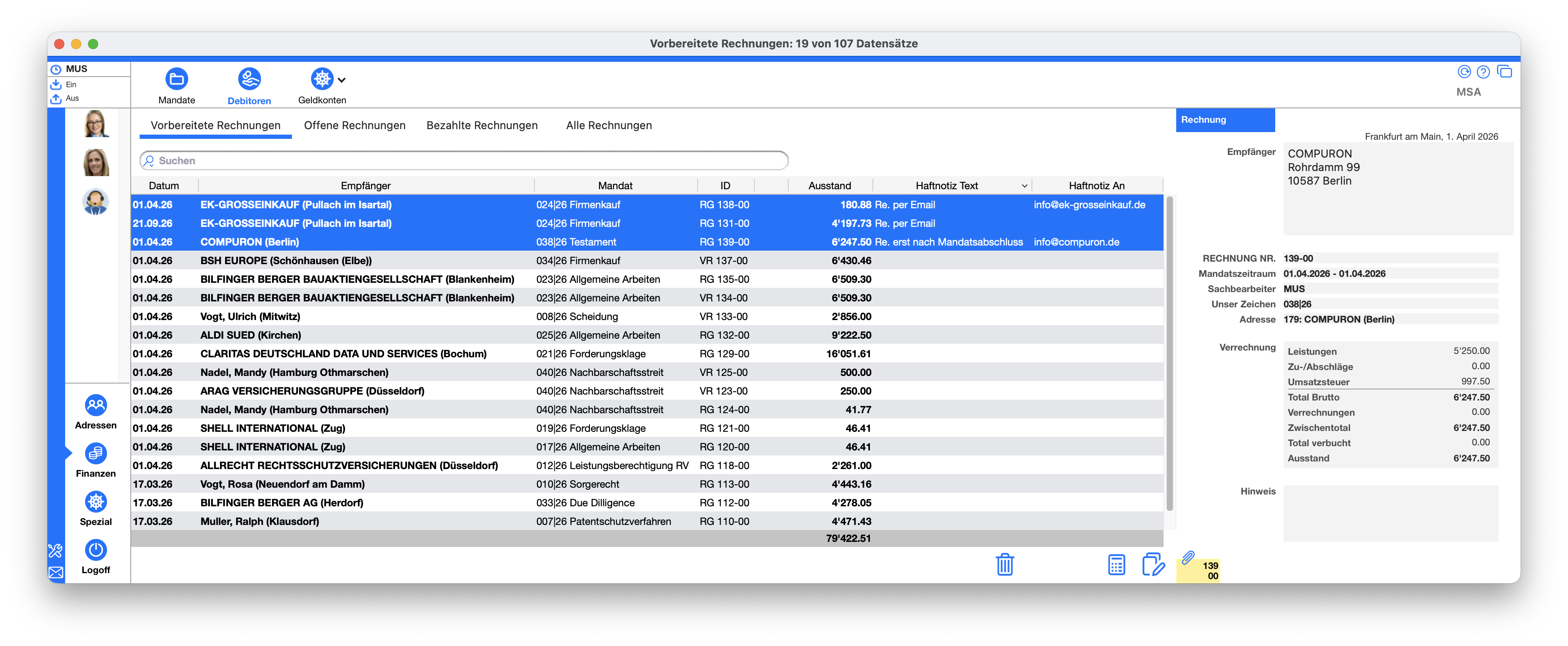
Sticky notes can now be displayed as columns: As with any other column, you can then search and sort – in both the new and the previous interface.
E-mail Invoice Recipients in the Sticky Note of Invoices
Creating an invoice from a case with a sticky note also copies the sticky note into the created invoice. This is very practical because timeSensor LEGAL then knows to whom the invoice should be sent. The fields can also be displayed in the debtor lists, enabling a time-saving workflow for automated email dispatch.
Justitia 4.0 (Switzerland)
The connection to the e-Justice platform Justitia has been comprehensively revised:
Clear message view. At the top are the type and status of the transmission, the procedure number, your reference, the responsible person, and the number of documents. Below, a timeline shows when the transmission was sent and received and when it expires – with the remaining days. For received messages, the sender is at the top.
Confirm receipt. If a delivery has not yet been confirmed, a notification bar explains that the documents will only be released after confirmation. The Confirm Receipt button is located directly next to it. The prompt indicates that Justitia records today's date as the delivery date and this cannot be undone.
Submissions in the existing procedure. A submission can now be filed in the authority's procedure. The draft shows the appropriate procedure as soon as the case and recipient are known. When sending, you confirm it or choose "without procedure." Justitia then displays the procedure number on the submission.
Court pre-filled. When creating a new message from a case, the court of the case is already entered as the recipient. In the To field, you first find your own Justitia contacts, then the platform's authorities.
The correct case. Incoming messages are assigned to the correct case via the procedure. A manually assigned case remains preserved. If the authority names a reference that refers to another case, it is marked in red. From the footer of a message, you can link the authority as the court of the case with one click.
Automatically filed. A sent submission is automatically filed in the case folder along with receipts as soon as the platform's receipt is available. Justitia documents carry their own symbol there.
Progress visible. Sending, confirming receipt, and loading the Justitia address book run with a progress indicator. When sending, you see which document is currently being uploaded.
Communicator
Accounts appear in the same order as in account management. Paused accounts are more clearly marked.
Microsoft 365: The categories with which timeSensor LEGAL marks emails in Outlook are now called ☑️ TS (downloaded) and ✅ TS (filed). They are thus recognizable in Outlook's category selection. The green marking now reliably replaces the gray one. The previous categories without labels remain in your mailbox until you delete them in Outlook.
Retrieval of Microsoft 365 mailboxes is significantly faster, especially for mailboxes with many folders.
Users and Templates
The external name of a user can now consist of up to four lines, such as name, title, function, and authorization. In templates for 4D Write Pro and Word mail merges, the individual lines are available as expressions.
Program Maintenance
In addition to new features, the build includes further minor improvements and bug fixes.